Connect your calendar
Overview
MeetingDebrief reads your calendar through its subscription link: a private web
address that ends in .ics. Calendar apps also call it an iCal link, a webcal link,
a secret address, or a published calendar. There is no account to sign in to and no permission
screen to approve. You paste the link, and MeetingDebrief reads the calendar straight from your
provider.
With a calendar connected:
- A recording made during a meeting on your calendar is named after the meeting and lists who was invited.
- Invitees are offered first when you name speakers, and their names help transcription spell them correctly.
- Summaries know the meeting's title and invitees, and can use the invite's description as the agenda.
- Recurring meetings pick up open items from the previous meeting in the series.
- The Calendar page shows your day of meetings and which ones you recorded.
It works with any calendar that can share an ICS link. Jump to the steps for your provider:
- Google Calendar and Gmail, including Google Workspace
- Microsoft 365 and Office 365 (work or school)
- Outlook.com and Hotmail (personal Microsoft account)
- Proton Calendar
- iCloud and Apple Calendar
- Fastmail
- Other calendars: Zoho, Yahoo, Nextcloud, and more
Before you start: the link is a password
Anyone who has your calendar's subscription link can read that calendar. Treat it like a password: paste it into MeetingDebrief and nowhere else, and don't share it in chats, tickets, or documents. If it leaks, reset it at your provider (each provider section below says how) and paste the new link.
MeetingDebrief keeps the link in your system keychain (macOS Keychain or Windows Credential Manager). It never appears in the app's database, logs, or exports. See Privacy and security for the details.
Add a calendar to MeetingDebrief
- Copy your calendar's subscription link. The steps for each provider are below.
- In MeetingDebrief, click Calendar in the sidebar and then Add a calendar. You can also go to Settings → Connections and click Add calendar under Calendars.
- Paste the link into Subscription link. It starts with
https://orwebcal://and usually ends in.ics. The field hides the link like a password. - Give the calendar a Name, such as "Work" or "Personal".
- Optional: add Your email addresses in this calendar. MeetingDebrief then leaves you out of the invitee list and skips meetings you declined. Google links fill this in automatically.
- Optional: turn on Use meeting descriptions as agenda for summaries. The invite's text, without dial-in details, is then given to summaries as context. It is off by default.
- Click Add calendar.
MeetingDebrief fetches the calendar right away. The calendar's status line in Settings → Connections then says how it went, for example Updated 5 min ago · 42 events, 30 with attendees. If none of the events list attendees, it warns you: Share the calendar with full details to see who was invited.
You can add several calendars, such as a work and a personal one. Each has an on/off switch, an edit button, and a delete button. Refresh fetches every calendar now.
Find your calendar's link
Each provider names the link differently, and most let you choose how much detail it shares. Choose the option that includes all details: with free/busy or titles-only links, recordings still get the meeting's title (or nothing), but no invitees.
Provider menus change from time to time. These steps were checked against each provider's own help pages in November 2026. If a label differs from what you see, look for the words "ICS", "iCal", "publish", "subscribe", or "secret address".
Google Calendar and Gmail
This works for personal Gmail accounts and Google Workspace accounts. Use Google Calendar on a computer; the phone apps don't show the link.
- Open calendar.google.com in a browser.
- Click the gear icon (Settings menu) in the top right, then Settings.
- In the left panel, under Settings for my calendars, click the calendar you want to connect. Your main calendar carries your name.
- Click Integrate calendar.
- Under Secret address in iCal format, click the copy icon. The link starts
with
https://calendar.google.com/calendar/ical/and ends inbasic.ics.
A shortcut to the same page: hover over the calendar in the left sidebar, click its three-dot menu, and choose Settings and sharing.
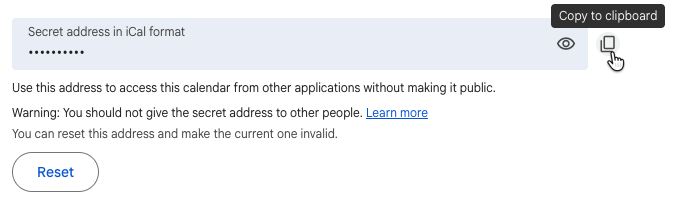
- Use the secret address, not the public address. The Public address in iCal format only works if you made the calendar public for everyone, and it may hide event details.
- One link per calendar. Each calendar under Settings for my calendars has its own secret address. Add each one you want separately.
- Calendars someone else owns usually don't show a secret address. Ask the owner, or connect your own calendar that has the same meetings.
Google Workspace (work or school): if Secret address in iCal format is missing, your administrator doesn't allow sharing calendar details outside the organization. Google says so plainly: "your administrator may not allow you to share your calendar." An administrator can change this in the Google Admin console under Apps → Google Workspace → Calendar → Sharing settings, in External sharing options for primary calendars. With Only free/busy information (hide event details) selected, the secret address isn't offered. Changes can take up to 24 hours.
To revoke the link: go back to Integrate calendar and click Reset next to the secret address. The old link stops working. Paste the new one into MeetingDebrief if you want to keep using it.
Microsoft 365 and Office 365 (work or school)
Microsoft calls this publishing a calendar. Use Outlook on the web; it is the most reliable place to do it.
- Open outlook.office.com and sign in with your work or school account.
- Click the gear icon (Settings) in the top right. If you see View all Outlook settings, click it.
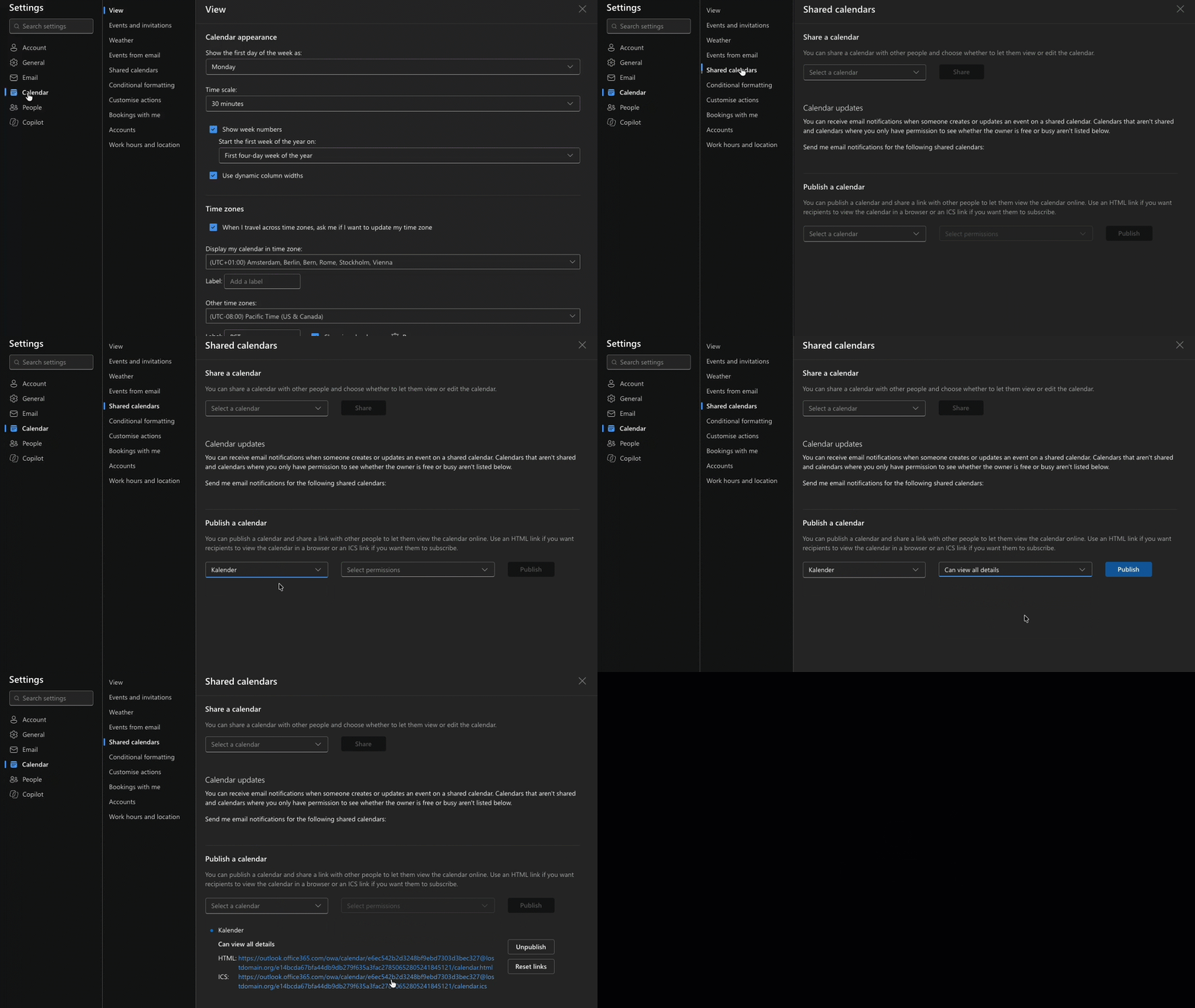
- Go to Calendar → Shared calendars.
- Under Publish a calendar, choose your calendar in Select a calendar.
- In Select permissions, choose Can view all details. The other options leave out invitees and descriptions.
- Click Publish. Two links appear: HTML and ICS.
- Copy the ICS link. Don't use the HTML link; that one opens a web page, and MeetingDebrief will say so.
- New Outlook for Windows has the same option under Settings → Calendar → Shared calendars. If it's missing there, use Outlook on the web.
- Classic Outlook for Windows and Outlook for Mac: use Outlook on the web. The link works the same no matter where you create it.
- Date range: Microsoft publishes about three months before and after today by default, which covers everything MeetingDebrief uses.
- Invitees: with Can view all details, published calendars normally list who was invited. Some Microsoft 365 users have reported published calendars that leave invitees out. If the status line says none of your events list attendees, meeting titles still work.
If Publish a calendar is missing, or Can view all details isn't in the list, your organization limits calendar sharing. MeetingDebrief can't work around that; ask your IT department. Administrators control it in the Microsoft 365 admin center under Settings → Org settings → Services → Calendar: publishing needs Let your users share their calendars with people outside of your organization who have Office 365 or Exchange and Allow anyone to access calendars with an email invitation, with Show all calendar appointment information for invitees to be included. A link that worked before and now shows The calendar refused access can also mean a policy changed.
To revoke the link: go back to Settings → Calendar → Shared calendars and click Unpublish under Publish a calendar. Both links stop working. To get a fresh link, publish the calendar again.
Outlook.com and Hotmail (personal Microsoft account)
Personal Microsoft accounts (outlook.com, hotmail.com, live.com) use the same steps as Microsoft 365, in Outlook on the web:
- Open outlook.live.com and sign in.
- Click the gear icon (Settings), then go to Calendar → Shared calendars.
- Under Publish a calendar, choose your calendar and Can view all details.
- Click Publish, then copy the ICS link (not the HTML link).
To revoke the link: click Unpublish in the same place.
Proton Calendar
Sharing a calendar by link needs a paid Proton plan, and it can only be set up in the Proton Calendar web app, not the phone apps.
- Open calendar.proton.me and sign in.
- Go to Settings → All settings → Calendars and select the calendar. You can also click the settings icon next to the calendar in the sidebar.
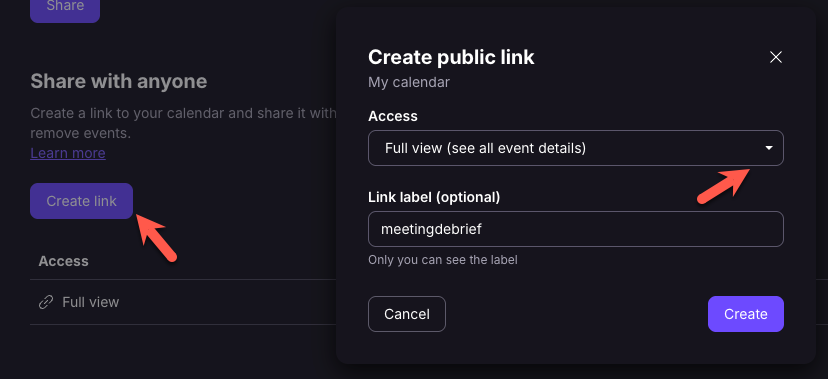
- Scroll to Share with anyone and click Create link.
- Choose Full view. Proton's full view includes event titles, descriptions, locations, and participants. Limited view only shows when you're busy.
- Click Copy link.
- Encryption: Proton Calendar is normally end-to-end encrypted. A share link contains the key that decrypts the calendar, and whenever the link is used, Proton uses that key to serve the calendar to whoever has the link. In Proton's words, sharing with Full view grants Proton "temporary access to the calendar". Decide whether that fits the calendar before you share it.
- Delays: Proton says changes can take up to 8 hours to reach a shared link. A meeting added at the last minute may not appear in MeetingDebrief right away; you can still pick it afterwards from the meeting header.
- You can create up to five links per calendar.
To revoke the link: go back to the calendar's settings, open the Actions menu next to the link under Share with anyone, and choose Delete link.
iCloud and Apple Calendar
Apple calls this a Public Calendar. It is only available for iCloud calendars.
In the Calendar app on a Mac:
- If the list of calendars isn't visible, choose View → Show Calendar List.
- Hover over the iCloud calendar's name and click the Share Calendar button next to it.
- Select Public Calendar. A
webcal://link appears. - Copy the link, or click the share button next to it to send it to yourself, then click Done.
On icloud.com/calendar, on a computer or tablet:
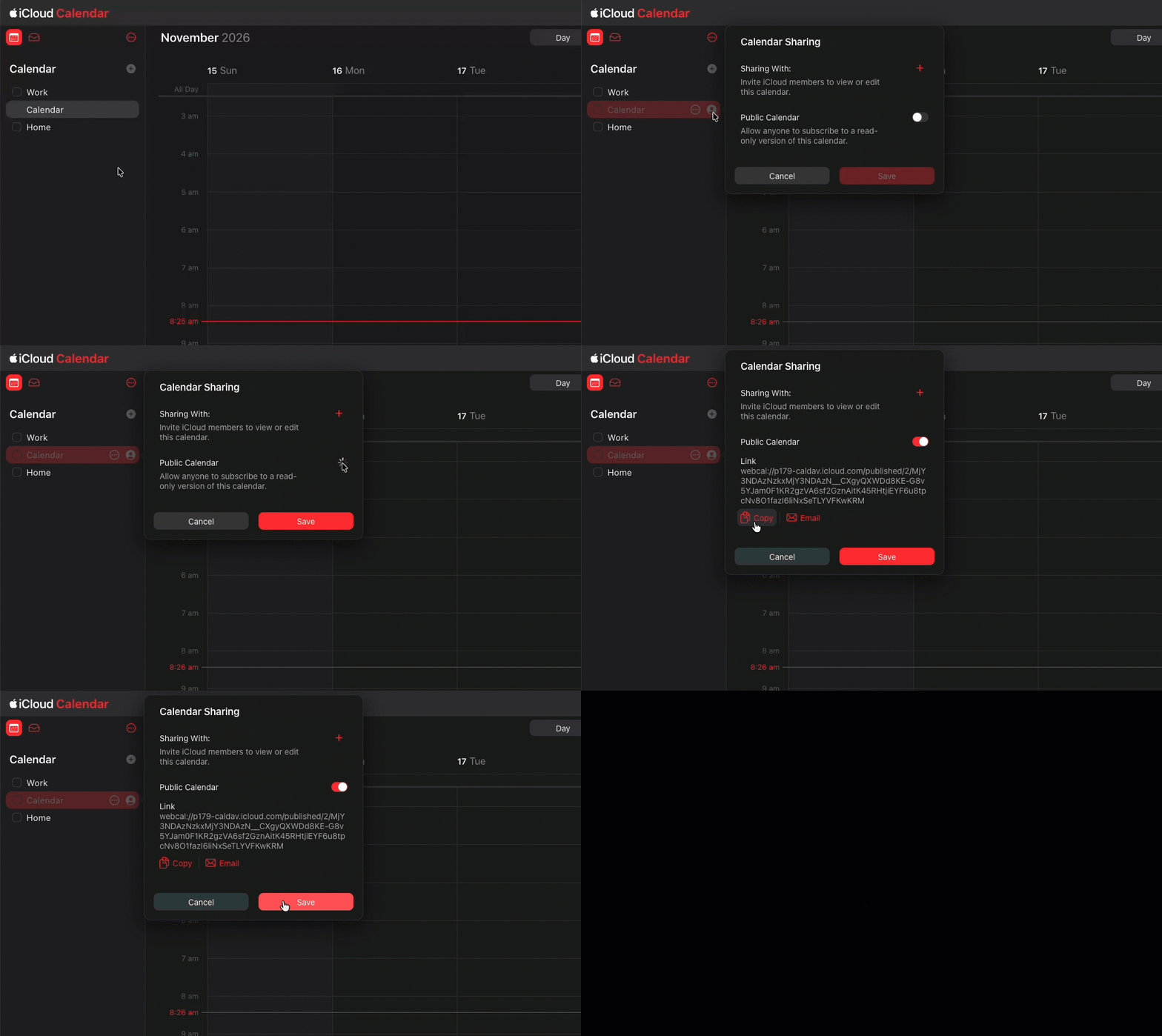
- Hover over the calendar in the sidebar and click the Calendar Information button.
- Turn on Public Calendar.
- Click Copy.
- Invitees: public iCloud calendars may leave out who was invited. Meeting titles still work.
- Work calendars in Apple Calendar: if your Google or Microsoft 365 calendar shows up in Apple Calendar, it has no Public Calendar option there. Get the link from the original provider instead, using the Google or Microsoft 365 steps.
To revoke the link: turn Public Calendar off again in the same place (on icloud.com, click Save afterwards).
Fastmail
- In Fastmail, go to Settings → Calendars.
- Click the calendar you want to connect.
- In the Publish section, turn on Full event details. Free/busy information only shows when you're busy.
- Copy the URL that appears and click Save. The link only works after you save.
Fastmail's link is read-only and can't be guessed. To revoke the link: click Reset URL on the same screen to replace it, or turn publishing off and save.
Other calendars
Most calendar services can share an ICS link. Look in the calendar's settings or sharing options
for "subscribe", "ICS", "iCal", "export link", "private URL", or "publish". The link usually
ends in .ics. Some examples:
- Zoho Calendar: Settings → Calendar → My Calendars, edit the calendar, and under Sharing and permissions copy the iCal link from Private URL. Reset replaces it.
- Yahoo Calendar: open the calendar's Actions menu, choose Share, turn on Get shareable link, and copy the link labeled for importing into a calendar app (ICS).
- Nextcloud: open the calendar's sharing menu, create a share link, and choose Copy subscription link.
Desktop apps such as Thunderbird don't create links themselves. Get the link from the service the calendar lives on.
What you get
Recordings named after the meeting
When you record during a meeting on your calendar, the recording is named after it and lists who was invited. MeetingDebrief matches on the recording's start and end time, with a few minutes of slack for meetings that start early or run late. The meeting header shows the time, the calendar, the call link, the invitees, and the agenda when you turned that on.
Matched the wrong meeting, or none? Click Change in the meeting header to pick a different meeting or unlink it. A recording that started outside a meeting shows Link a calendar meeting in the same place, so you can link it afterwards. If you already renamed a recording or picked its meeting yourself, MeetingDebrief leaves it alone.
Invitees help put names on voices
When you name speakers, the meeting's invitees are offered first. When one speaker and one invitee are left, MeetingDebrief suggests the match. Accepting takes one click; it never assigns anyone by itself. Invitees stay with their meeting and aren't added to your People directory until you name a speaker after them.
Better summaries and recurring meetings
- Summaries know the meeting's title and who was invited.
- With Use meeting descriptions as agenda for summaries on, the invite's description is used as context, without dial-in details.
- A summary of a recurring meeting can pick up open items from the previous meeting in the series.
- Click Every meeting in this series… in the meeting header to file every meeting of a series in a folder, add tags, and summarize it with the same template every time.
The Calendar page
Calendar in the sidebar shows one day at a time, for any day from the last 30 days to the next 14. It lists every meeting, marks the ones you recorded, and lets you attach a recording to a meeting it missed.
Ask to record when a meeting starts
Turn on Ask to record when a meeting starts in Settings → Connections, and the floating recorder offers to record when a meeting with a call link or invitees begins, for example "Design review is starting · Record". It is off by default, and it never starts a recording by itself.
Email invitees
Email invitees in the meeting header opens a draft in your own mail app, addressed to everyone on the invite, with the summary as the body. Nothing is sent by MeetingDebrief; you review and send it yourself.
Privacy and security
- Direct from your provider: MeetingDebrief fetches the calendar straight from your calendar provider over HTTPS. It never passes through MeetingDebrief's servers.
- Stored in your keychain: the link lives in macOS Keychain or Windows Credential Manager, never in the app's database, logs, or exports.
- Encrypted connections only:
webcal://links are fetched overhttps://. Plainhttp://links are refused, except on your local network, and redirects tohttp://are not followed. - A local copy: MeetingDebrief keeps the past month and the next two weeks of your calendar on your computer, and refreshes it every 15 minutes and when a recording starts.
- Invitees stay with their meeting: they aren't added to your People directory.
- Invites are information, not instructions: anyone can send you an invite, so titles, names, and descriptions are passed to the AI as information and never followed as instructions.
- Your own AI server: if summaries run on your own AI server, the meeting title, invitees, and agenda go to that server along with the transcript.
To stop using a calendar, delete it in Settings → Connections, and revoke the link at your provider. Deleting it in MeetingDebrief doesn't revoke the link: anyone else who has it could still read the calendar. Each provider section above explains how to revoke.
Troubleshooting
When a calendar can't be read, the Calendar page and Settings → Connections say why, with Fix in Settings to go straight to it.
- That isn't a calendar link. It usually starts with https:// or webcal:// and ends in .ics.
- Something other than the subscription link was copied, such as the calendar's page address. Copy the link again using the steps for your provider.
- Use an https:// or webcal:// link. Plain http:// would send your calendar unencrypted.
- Change
http://tohttps://at the start of the link. If your provider only offershttp://, it can't be used. - The link opened a web page, not a calendar. Copy the iCal/ICS link instead of the page address.
- Common with Outlook, which shows an HTML and an ICS link side by side. Copy the ICS one.
- The calendar refused access. The link may have been reset, or your organization blocks sharing.
- Get a fresh link from your provider and paste it with the edit button in Settings → Connections. With a work account, your organization may have turned off calendar sharing; ask your IT department.
- The calendar is gone. The link may have been reset or unpublished; paste the new one.
- The link no longer exists at your provider. Create a new one and paste it with the edit button.
- Couldn't reach the calendar, took too long, or the calendar service had a problem
- A network or provider hiccup. MeetingDebrief tries again automatically; click Refresh to try now.
- This calendar is too large to read (over 25 MB).
- Some calendars hold many years of events. Connect a smaller calendar, or remove old events at your provider.
- The link is missing from the system keychain. Paste it again.
- MeetingDebrief couldn't find the link in your system keychain. Paste the link again with the edit button.
- …but none list attendees. Share the calendar with full details to see who was invited.
- The link only shares free/busy times or titles. Create a link with full details (Can view all details in Outlook, Full view in Proton, Full event details in Fastmail) and paste it. Some providers leave invitees out of shared calendars entirely; recordings are still named after the meeting.
A meeting doesn't show up
- Changes on your calendar show up in MeetingDebrief within about 15 minutes. Click Refresh in Settings → Connections to fetch now.
- Some providers update their shared link with a delay of their own. Proton, for example, can take up to 8 hours.
- If the meeting is on a different calendar, add that calendar too.
- You can always link a recording to a meeting afterwards from the meeting header.
For agents and local tools
The Local HTTP API returns a recording's calendar meeting
and invitees from GET /api/sessions/{id}/meeting and in the meeting
field of /api/sessions/{id}/context. GET /api/sessions?participant=…
finds meetings with a person. The MCP server offers the
same through get_meeting and the participant filter on
list_meetings. The subscription link itself is never exposed.