Debrief
v5.0.0
Version 5.0 adds dictation. Hold a shortcut anywhere on your machine, say what you want written, and the text is typed into whatever app you're in — an editor, a terminal, a chat box — then kept in its own history. It runs on the same local speech engine as your meetings, so nothing leaves your computer. Parakeet graduates from preview to the recommended engine, and the whole app gets a dark mode.
Highlights
Dictation: speak anywhere, text appears
Press and hold ⌃⌥D — or whichever shortcut you prefer — anywhere on your machine, say a sentence, and let go. The text is pasted into the app you were already typing in, and saved under the new Dictation section in the sidebar.
A small window shows what's happening while you speak: a level meter that moves with your voice, your words appearing as they're recognised, and how long you've been talking with a running word count. Press Esc to throw a recording away.
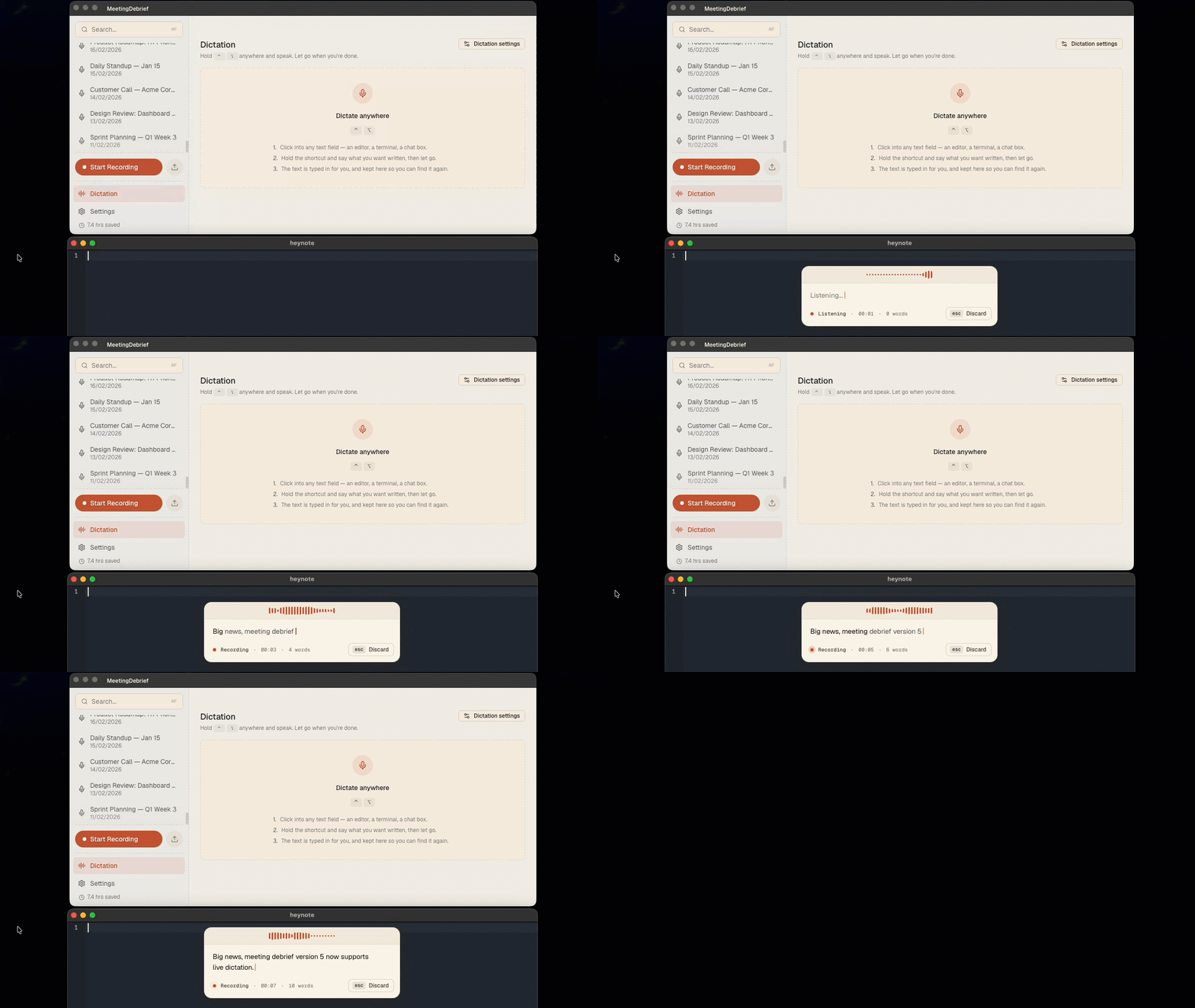
- Three ways to trigger it. Hold the shortcut like a walkie-talkie, press once to start and again to stop, or use both — a quick tap keeps recording hands-free, holding is push-to-talk.
- Your clipboard survives. Pasting has to go through the clipboard, so whatever you had copied is put back afterwards. Copy a log, dictate "take a look at this error", and the log is still there to paste underneath.
- Music pauses itself. Other audio is muted while you speak and restored exactly as it was — including the volume level, and including when you cancel. A system you had already muted is left alone.
- Your own words. Dictation runs through the same Vocabulary you taught MeetingDebrief, so product names and jargon come out spelled the way you mean them.
- A history you can search. Every dictation is kept with its audio for 30 days by default, so you can play one back or copy it again. The text stays until you delete it. Both the app's global search (⌘K) and the Dictation page search it, with dictations grouped separately from meetings so a result is never ambiguous.
- The tray can copy your last dictation, for when you dictated into the wrong window.
It's all in Settings → Dictation: the shortcut, how it starts and stops, whether it pastes for you, sounds, where the window appears, and how long audio is kept. On macOS, pasting for you needs Accessibility access; the panel asks for it and explains why.
Dictation needs the Parakeet speech model, which is fast enough to transcribe as you talk. A 15-second dictation is typed out within a fraction of a second of letting go.
Parakeet is now the recommended engine
Parakeet TDT v3 shipped as a preview in 4.0. It has lost the preview label and is now the model MeetingDebrief suggests during setup — 25 languages, punctuation and word timings, running locally on your machine's GPU where there is one.
Meetings and dictation now share one speech pipeline rather than each having their own, which makes the model behave better for both: it stays loaded between uses instead of being unloaded whenever a summary ran, so transcription and dictation start instantly. On machines with less than 16 GB of memory it still gives way when summaries or chat need the room. A dictation can also interrupt a long meeting transcription, take its turn, and hand it straight back — you never wait for a transcript to finish before you can dictate.
How long the model stays loaded is now set in Settings → Models, next to the model itself, and only appears once Parakeet is installed.
Dark mode
MeetingDebrief follows your system appearance, or you can pin it to light or dark in Settings → General. Every window is covered — the main window, the floating recorder, the dictation window, setup and updates.
Summaries know what day the meeting was
Ask a summary about "next quarter" and it used to guess, because it had no idea when the meeting happened. Summaries and chat are now told the meeting's date, so relative references — next quarter, end of the month, by Friday — resolve against the day you actually spoke rather than an invented one.
Choose which speakers to capture on Windows
Meeting audio on Windows used to record whatever the default output device was, which is wrong the moment your meeting app plays through a headset while Windows points at your monitor's speakers. Settings → Audio now lets you pick the output to capture. If a saved device disappears, MeetingDebrief says so instead of quietly recording only your microphone.
Other improvements & fixes
- NEW: The Dictation page walks you through your first dictation, shows your configured shortcut, and names whatever is stopping it — switched off, no speech model, or an unusable shortcut — with a button that fixes it.
- Pasting a dictation respects your keyboard layout, so ⌘V works on Dvorak and AZERTY rather than sending the wrong key.
- When an app blocks pasting — a password field, or an elevated window on Windows — the text stays on the clipboard and the dictation window tells you to paste it yourself.