What to Look for in a Voice to Text App for Slack, Docs, and Terminals
A good voice to text app is not the one with the prettiest accuracy demo. This guide shows how to test cross-app insertion, clipboard safety, shortcuts, jargon handling, and offline fit before you buy.
 Martijn Smit
8 min read
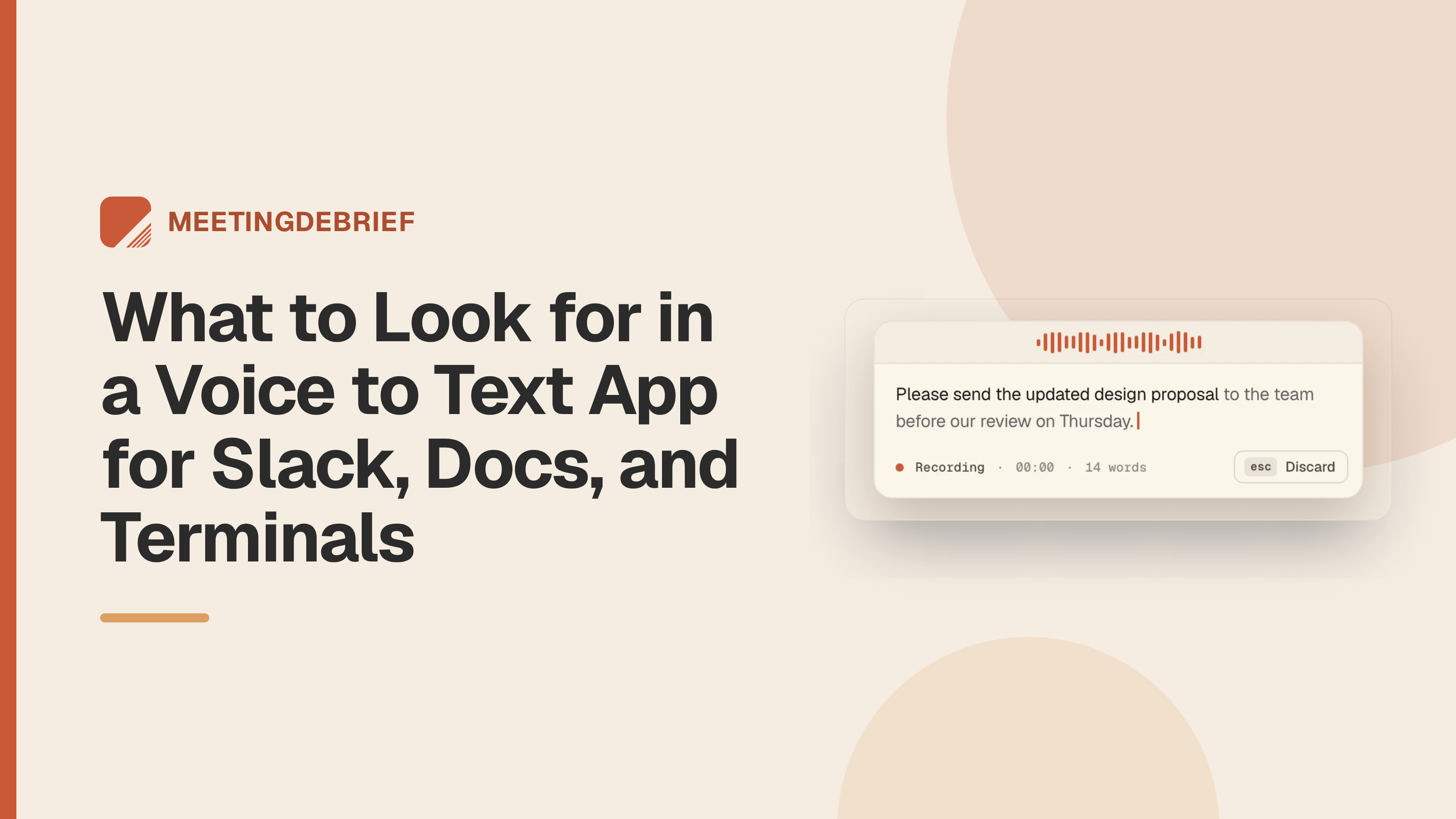
Choose a voice to text app by testing it where you already write: a Slack reply, a paragraph in Google Docs, and a prompt in your terminal. A clean transcript in the app’s own window tells you little about the work needed to get those words into yours.
The awkward parts show up between tasks. You’ve copied an error log, dictated an explanation, and now need to paste the log underneath. Or you’ve switched windows and need the next dictation to land at the right cursor. For desktop work, safe cross-app insertion should lead your buying decision. Judge accuracy alongside the corrections and manual steps needed to produce usable text.
Start by separating live dictation from transcription
Live dictation turns speech into text for the field you’re writing in. You speak, then the app inserts the words at the active cursor. Transcription converts audio, such as an interview recording, into a text record. Meeting notes add another job: condensing a conversation into a summary.
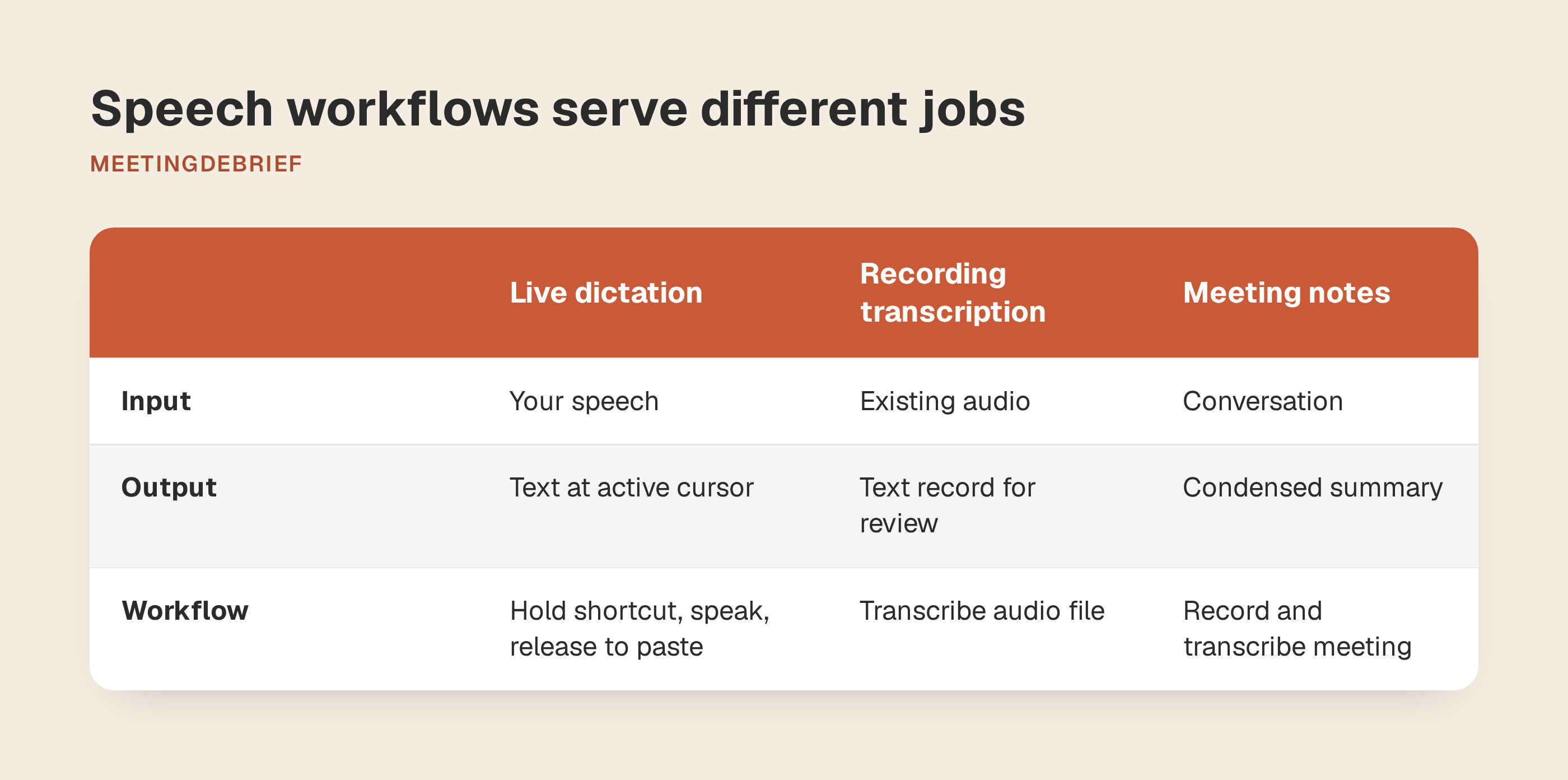
These jobs can share a speech engine without sharing a workflow. An interview transcript needs to be available for review later. A dictated email needs to become an editable draft where you’re composing it. An app that transcribes audio files may offer no way to dictate into another application.
MeetingDebrief includes both workflows. Its Dictation feature lets you hold a shortcut, speak, and release it to paste text into the app you’re using. That is separate from recording and transcribing a meeting, even though both use the same local speech engine.
“Speech to text” alone does not establish live dictation support. If you also need recording transcription, confirm that separately.
If it cannot write into your real tools, it is the wrong app
Test specific fields, not just application names. In Slack, try a thread reply and a new message. In a browser document, place the cursor halfway through a paragraph. In email, move between the subject and message body. In your code editor, use your usual prompt field. Success in one field does not establish that every surface you need is covered.
Keep text on either side of the cursor. Check whether dictation lands where you placed it without replacing a selection or requiring manual transfer. In a terminal, use a harmless draft prompt and review the result before submitting anything. Don’t use an executable command as your first test.
MeetingDebrief supports fields with a text cursor, including Google Docs in a browser, Slack, Mail, Outlook, VS Code, Cursor, and Terminal. It targets the focused field without per-app integrations. Switch from a document to a chat reply, click the intended insertion point, and dictate there.
Reject a finalist if a field you depend on requires a recurring detour through its own editor. That detour becomes part of every message.
Clipboard safety is a buying criterion, not a nice-to-have
Dictation may use the clipboard to insert text. If it leaves your spoken words there, it can replace a copied URL or code snippet you still need. Copy something disposable, dictate a sentence, then paste into a scratch document. The original copied content should survive successful insertion.
In MeetingDebrief, open Settings → Dictation. Paste into the app I'm using is on by default. Keep what I had copied, also on by default and shown when pasting is enabled, restores the previous clipboard after insertion. Check these dictation settings rather than assuming preservation is automatic.
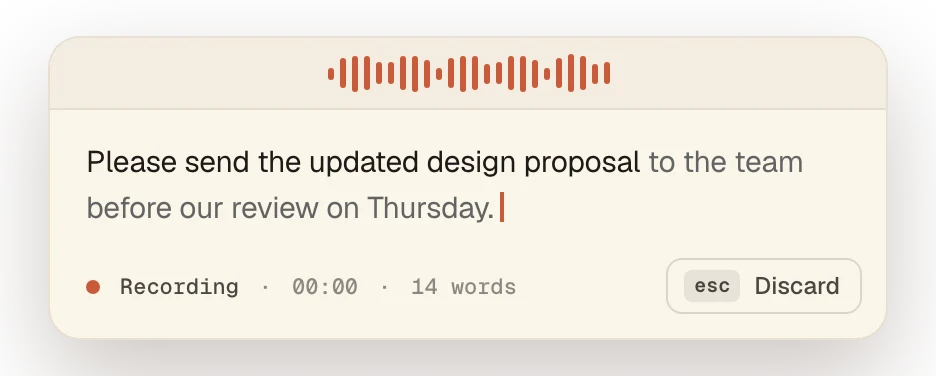
Blocked insertion needs a different outcome. Password fields and elevated administrator windows on Windows block MeetingDebrief’s automatic paste. The text stays on the clipboard, and the dictation window asks you to paste it yourself. That fallback preserves your words without overriding the destination’s restrictions. Test with harmless text, never a real password.
On macOS, copied-but-not-pasted text can also mean a missing permission. MeetingDebrief needs Accessibility access for automatic pasting. In Settings → Dictation, click Grant access, then enable MeetingDebrief in System Settings → Privacy & Security → Accessibility. Check this before treating a failed insertion as an incompatible field.
Shortcut behavior decides whether you will actually use it
Push-to-talk records while you hold a key combination; release it when you finish. Press-to-start/press-to-stop lets you release the keys while talking, then press again to finish. Holding keys may suit short replies. Toggling avoids holding them through a long draft, but you need to remember to stop. Try both with your usual dictation length.
MeetingDebrief offers either mode, or both. Its default shortcut is Control+Alt+D on Windows and Control+Option+D on macOS. Change it under Settings → Dictation → Shortcut, where modifiers-only combinations are also allowed. Compare the defaults in the shortcut documentation with your existing bindings.
Test for conflicts during ordinary keyboard work. Watch for accidental recording or awkward hand positions. MeetingDebrief 5.1 delays the cue, window, and audio muting for modifier-only shortcuts by 250 ms. If another key arrives within that interval, dictation is dropped silently; a longer hold can still briefly flash the window. On macOS, modifier-only shortcuts additionally require Input Monitoring access.
Keep your chosen binding unchanged for a few working days. Notice whether you reach for it during normal replies or still have to stop and recall it. Resolve recurring conflicts before judging whether dictation fits your routine.
Jargon support matters more than one-off accuracy demos
An app can recognize ordinary prose while leaving you to correct the same client surname, acronym, or product name all week. Look for vocabulary controls, then test whether saved entries prevent repeat mistakes.
Build a short passage around words you use: a colleague’s name, an acronym such as SAML, and a specialist term such as Kubernetes. Dictate it before adding vocabulary. Save the mishearings, add corrections, then repeat the passage. Count how many terms still need editing.
In MeetingDebrief, Settings → Vocabulary holds entries shared by dictation and meeting transcription. Term stores the correct spelling. Also heard as stores mishearings to replace automatically; press Enter after each one. Meaning gives summaries and chat an explanation of the term. Add errors you actually encounter rather than guessing every possible variation.
The mechanisms differ: vocabulary can hint Whisper before transcription, correct transcripts as they are saved, and explain terms to summaries and chat. Dictation shares the vocabulary, but not every engine uses every mechanism. Judge it by whether recurring corrections disappear on the next attempt.
Offline use, privacy, platform support, and language coverage are the final filters
Apply these filters to tools that passed your workflow checks. Offline processing cannot compensate for failed insertion in an essential field. Confidentiality requirements can still rule a tool out immediately: if work policy prohibits uploading client audio, establish where processing happens before testing real content.
Separate “works offline” from “stores data locally.” Ask whether recognition needs a connection and whether audio or text leaves the computer. MeetingDebrief’s processing runs on-device, including dictation, transcription, summaries, and chat. Dictation audio and text are stored locally. Setup requires model downloads and license activation; the app also makes update checks. After setup and activation, dictation works without a connection. Verify that by disconnecting before a test.
MeetingDebrief requires macOS 13 Ventura or later, or Windows 11 or later (64-bit). It is a desktop app, not a browser-based dictation service. Check hardware requirements before installing, particularly on a managed computer where downloads or activation may require approval.
Language coverage must match the feature. MeetingDebrief dictation requires Parakeet TDT v3, which supports 25 languages. Whisper supports 99+ languages for transcription but cannot power dictation. Test the languages you write in, including switching between them, without assuming mixed-language speech is supported.
Compare cost among the remaining candidates. Record the purchase price or recurring charge, free-tier minutes, export limits, per-device versus per-user licensing, and whether offline dictation requires a paid tier or model download. MeetingDebrief is a one-time purchase priced by device count; dictation requires the Parakeet model download. Consider cost only after practical and policy requirements pass.
Use a 10-minute scorecard before you buy
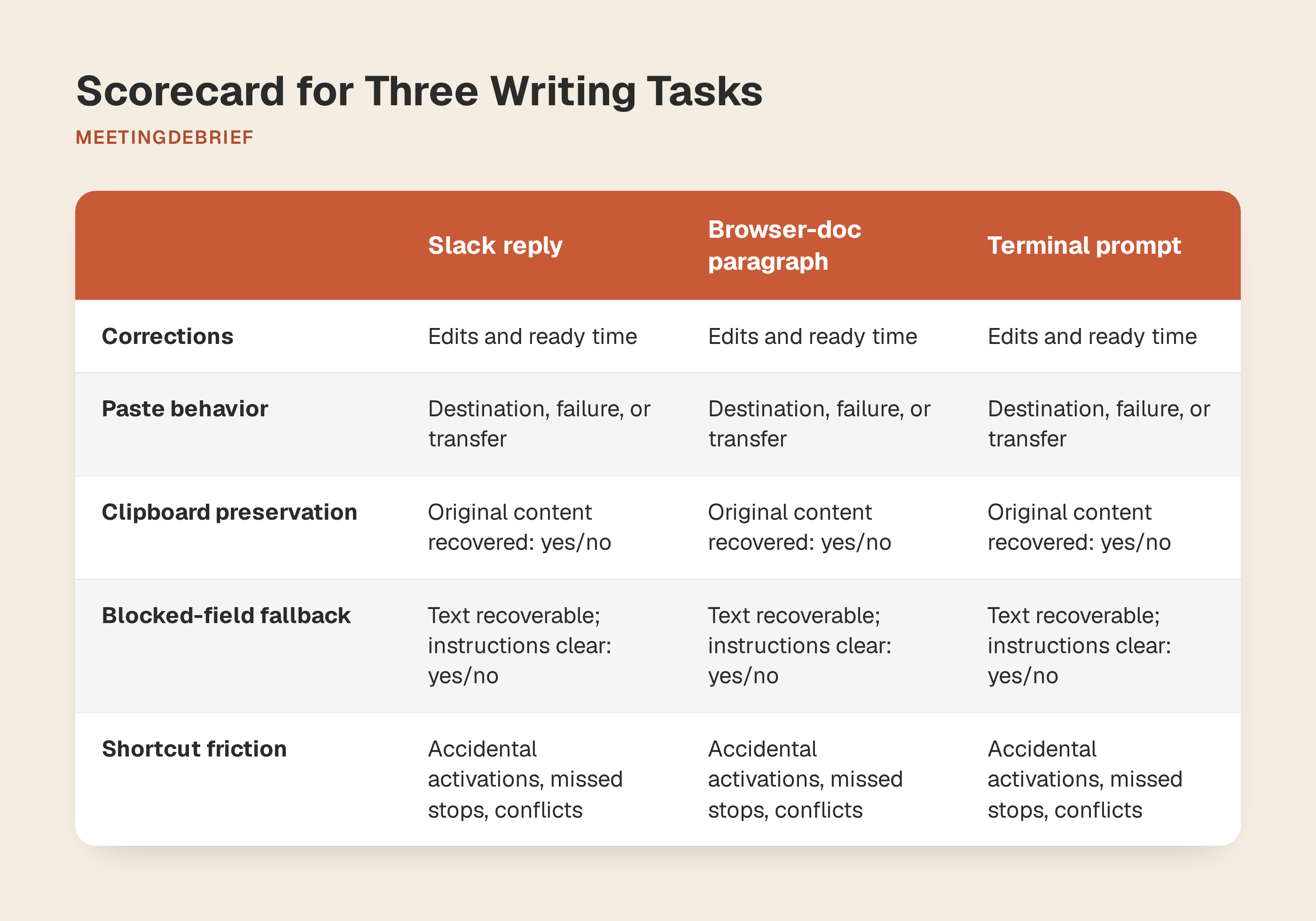
Give each finalist ten minutes after installation and setup. Prepare the wording in advance and use identical scripts and the same microphone. Keep the first result, including mistakes, so you can compare it with the corrected draft.
- Slack reply, two minutes: Dictate a short update: “The migration is ready for review. Please check the staging results before we schedule the release.”
- Browser-doc paragraph, three minutes: Dictate roughly 60 words from your own work. Include a name and a technical term you regularly use.
- Terminal prompt, two minutes: Dictate a request for a coding assistant: “Review the authentication tests and explain which failure cases are missing. Suggest changes without modifying any files.” Leave it unsubmitted while you assess the text.
Use the remaining three minutes to finish this scorecard. Keep one copy per app, with separate results for each task.
| Criterion | What to record |
|---|---|
| Corrections | Number of edits needed, plus time until the draft is ready |
| Paste behavior | Correct destination, failed insertion, or manual transfer |
| Clipboard preservation | Original copied content recovered: yes or no |
| Blocked-field fallback | Text recoverable, and instructions clear: yes or no |
| Shortcut friction | Accidental activations, missed stops, or binding conflicts |
Mark anything you haven’t tested as untested, not a pass. Keep essential failures separate from correction counts: fewer spelling fixes should not outweigh a failed requirement. If two apps pass, compare the time needed to produce a usable draft.
Before paying, send the vendor a reproducible example of unresolved failures: your operating system, destination field, expected result, and what happened. Ask whether the issue needs a permission change, has a workaround, or remains unsupported. If you use two computers, download MeetingDebrief on the second one and test it before deciding how many devices to license.
Download MeetingDebrief to compare it with your shortlist using the same three tasks and scorecard. Then use whichever candidate performs best for a normal working day before buying.