Wispr Flow Alternative: If You Also Need Meeting Notes
This article helps you decide whether you need another dictation app or one tool for dictation and meeting notes, then compares the cost and workflow trade-offs.
Martijn Smit 11 min read
If you’re searching for a Wispr Flow alternative, sort the job before you compare the tools. Some people need a better dictation app. Others started with dictation, then added a separate meeting notetaker, and now want one place for recording, transcripts, summaries, follow-up, and search.
That split changes the category. If your work ends when text appears at the cursor, stay in the dictation-app comparison. If the useful work starts after a call, because you need a transcript, summary, action items, or the exact moment someone agreed to something, compare the whole workflow instead.
If that is your whole job, keep the comparison narrow. A Wispr Flow user in that camp usually cares about speaking into Slack, email, docs, prompts, or a terminal without breaking focus. Shortcut comfort, paste behavior, and how well the tool handles names and jargon matter more than meeting features there, and this article is not claiming a meeting recorder wins that smaller contest.
The fork in the road: dictation only, or dictation plus meetings?
Use your own day to answer this. If the job ends when your speech becomes text in Slack, email, docs, tickets, prompts, or a terminal, you are still choosing a dictation app. In that case, the practical questions are simple: does it work wherever you type, is the shortcut comfortable enough to use all day, and does it handle your names and jargon without getting in the way?
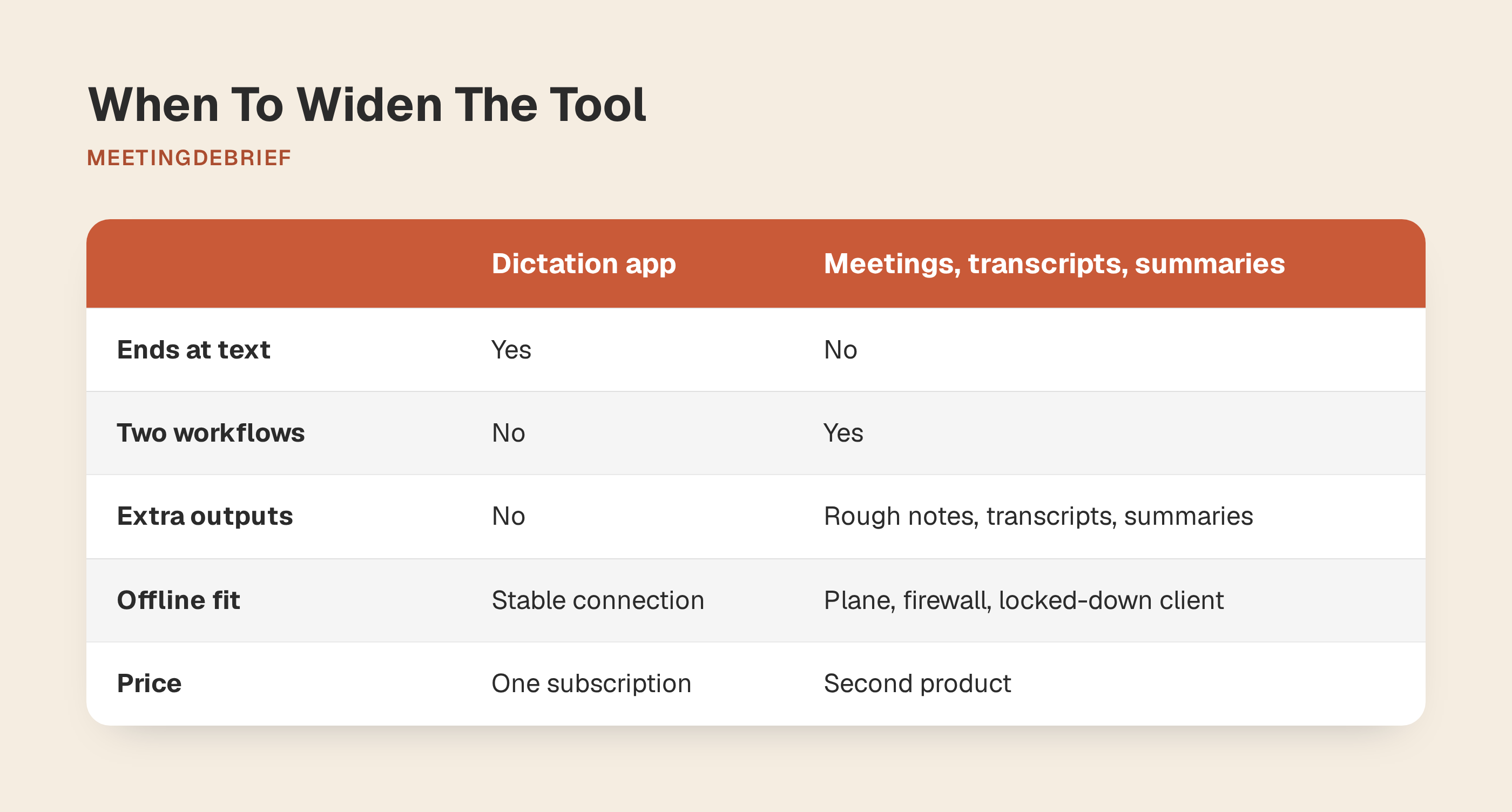
Widen the comparison when voice has quietly become two workflows. That usually looks like dictating during the day, then recording client calls elsewhere; leaving a meeting with rough notes that still need rewriting; or remembering a decision but not where it was made. At that point, a better speech-to-text tool fixes only half the problem.
This is where privacy, offline use, platform fit, and price stop being side issues. Dictating a paragraph into an email and recording an hour-long client call are different risks. A tool that is fine on a stable connection may be the wrong tool on a plane, behind a corporate firewall, or in a locked-down client environment. Platform fit matters too, because MeetingDebrief is desktop-only on macOS and Windows. If you need mobile, web, or Linux, rule it out early.
Price belongs in that first filter as well. Comparing one dictation subscription to another misses the real bill if meetings are now part of your work. The relevant question is not just what dictation costs. It is whether you are about to pay for dictation and a second product for notes, transcripts, and summaries.
Once meetings are in scope, compare workflows, not just dictation apps
Once meetings are part of the job, comparing dictation apps alone misses the real failure mode: the call lives in one tool, the dictated follow-up in another, and search stops at the product boundary. In a trial, check whether one app can handle both live text entry and the meeting record you need to find again later.
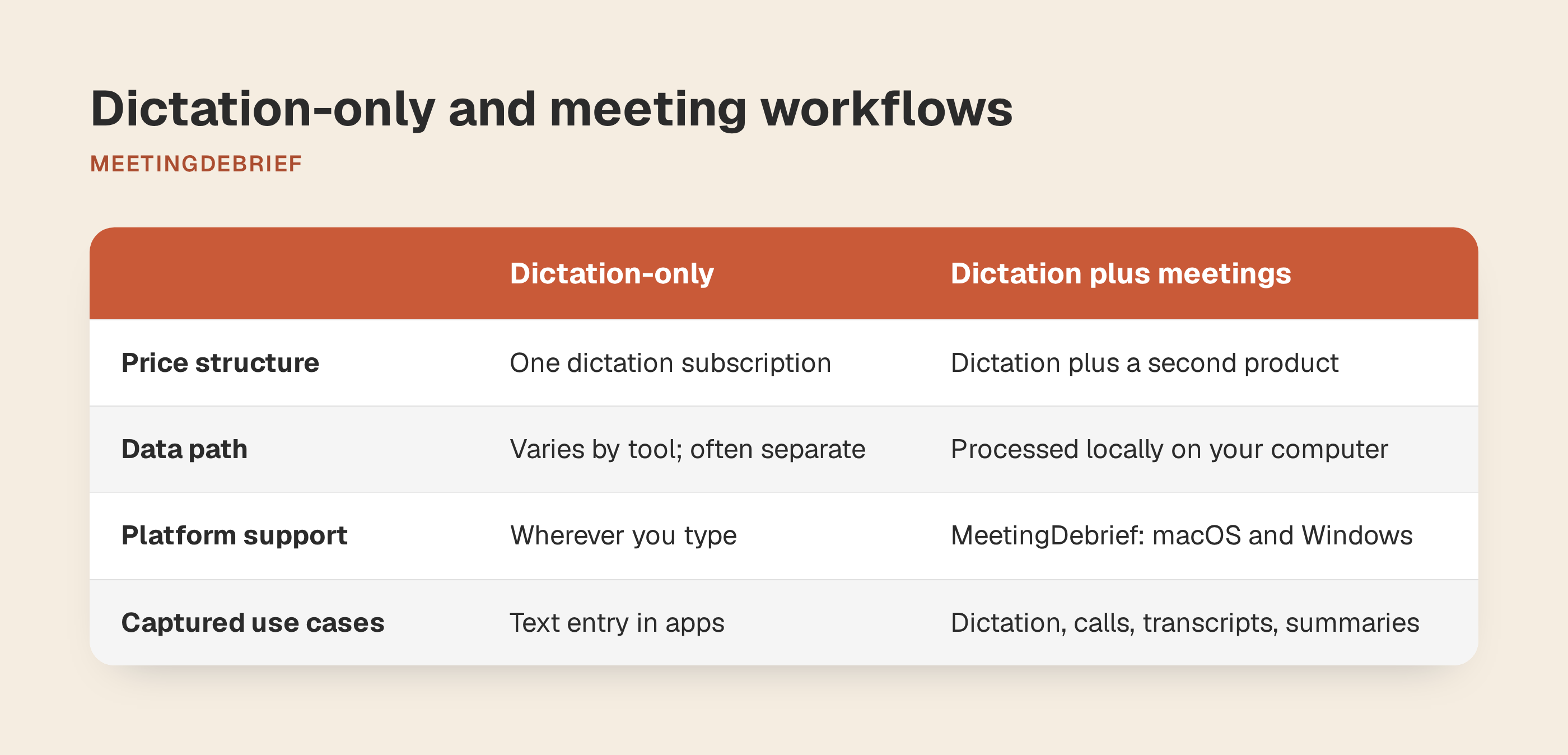
| What you need to compare | Dictation-first setup | MeetingDebrief |
|---|---|---|
| Text entry during the day | Speech becomes text where you are typing | Dictation types into any app with a text cursor and keeps a history under Dictation |
| Recording a call | Usually becomes a second workflow with a separate tool | Records microphone and system audio in the same app |
| Meeting output after the call | Depends on whatever second tool you add | Transcript, summary, chat, and notes stay with the recording as one session |
| Imported recordings | Often handled elsewhere | Existing audio files can be imported and processed locally |
| Search later | Usually split across products | One search spans transcripts, summaries, notes, and dictations |
| Where processing happens | Varies by tool, often separately | Models are downloaded once, then recording, transcription, summaries, chat, and dictation run on your computer |
| How meetings are captured | Often requires meeting-specific tooling | Works by capturing mic plus system audio, so there is no bot joining the call |
| Platform fit | Varies | Desktop only: macOS 14+ and Windows 11+ |
Once meetings enter the picture, you are also choosing how they are captured, where transcripts live, and whether search works across any of it. With MeetingDebrief, the models are downloaded once, then recording, transcription, summaries, chat, and dictation run on your computer, so no audio leaves the device.
The practical gain is that the pieces stop drifting apart. You can search a client name and pull up both a dictated follow-up and the meeting where the deadline was set. You can keep dictated prompts and meeting context in the same history instead of reconstructing the thread from two products. Once meetings are part of the job, that is the comparison that matters.
The hidden cost is the second monthly bill
Use the numbers in this section as an example, not as market truth. MeetingDebrief’s pricing page uses a dated September 2026 comparison of Otter.ai Pro at $16.99 a month plus Wispr Flow Pro at $15 a month. On monthly billing, that stack comes to $31.99 each month, or $383.88 over a year for one user.
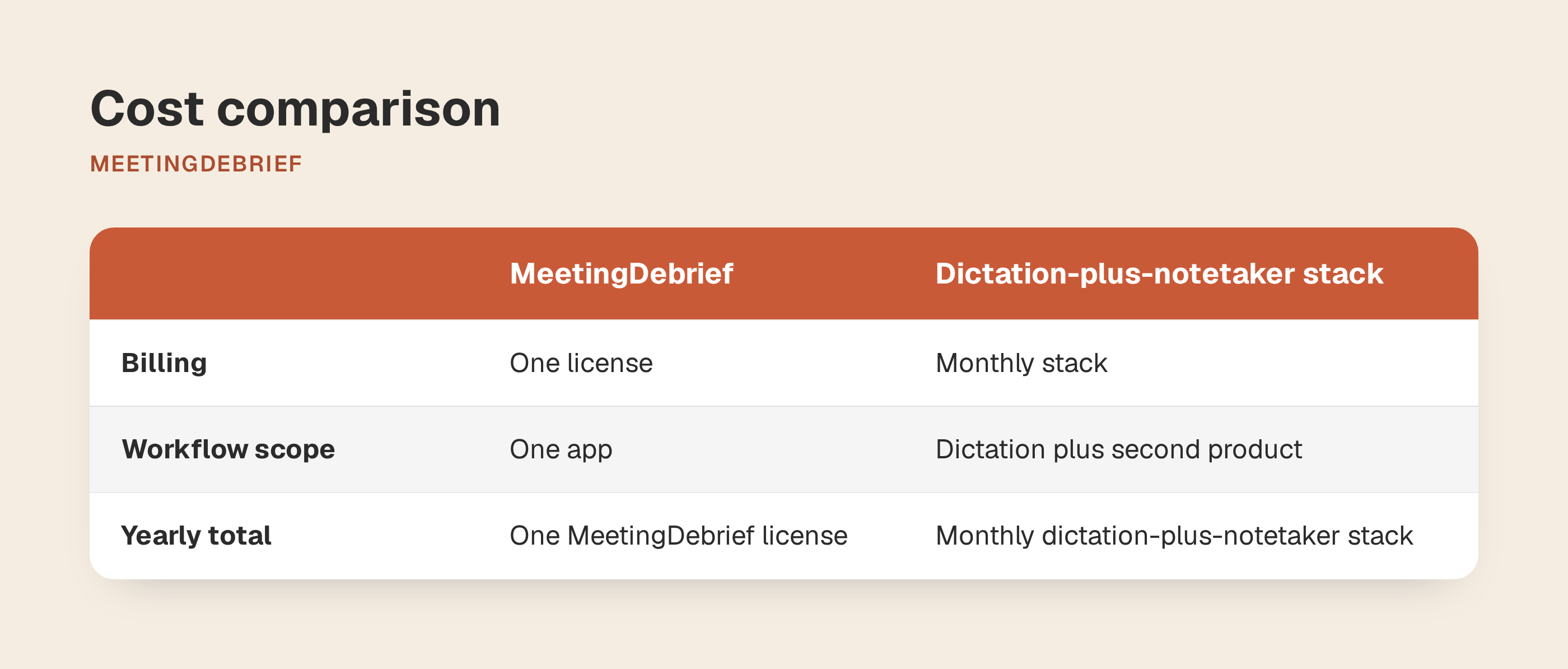
For a one-device comparison, the math is straightforward:
| Setup | Price model | What you pay in year one |
|---|---|---|
| Wispr Flow Pro + Otter.ai Pro | Two monthly subscriptions | $383.88 |
| MeetingDebrief | One-time license per computer | typically $18 |
Using the figures on the pricing page, the first-year gap is $365.88 for a single computer. MeetingDebrief states that there is no subscription, no usage limits, and no feature gates, and the 7-day trial includes every feature; entering a license key removes the time limit without changing the app.
Two caveats matter. First, MeetingDebrief’s own price is localized by region, so the amount and currency shown can vary. Second, the Otter.ai and Wispr Flow numbers on that page are dated to September 2026, and annual billing is cheaper on both services. If you are making a live buying decision, recheck current vendor pricing before treating those figures as current.
Even with that caveat, the budgeting pattern is clear. If you need both everyday dictation and post-call notes, the cost question is usually not “is this dictation app cheaper than that one?” It is “how many recurring bills does this workflow create?” A monthly dictation tool can be reasonable on its own. A monthly dictation tool plus a monthly meeting notetaker is a different commitment.
The same check applies if Otter.ai is not your second product. MeetingDebrief’s compare pages list pricing snapshots for other subscription tools too. Use them as a starting point, not as permanent truth. Vendor prices move. The decision frame does not.
What a replacement has to do at the cursor
A dictation replacement lives or dies in ordinary work. The real test is what happens halfway through a Slack reply, an email, a doc, a Google Docs note in the browser, a long prompt in Cursor, or a terminal command. You should be able to trigger dictation from the keyboard, speak, and keep working in the same place.
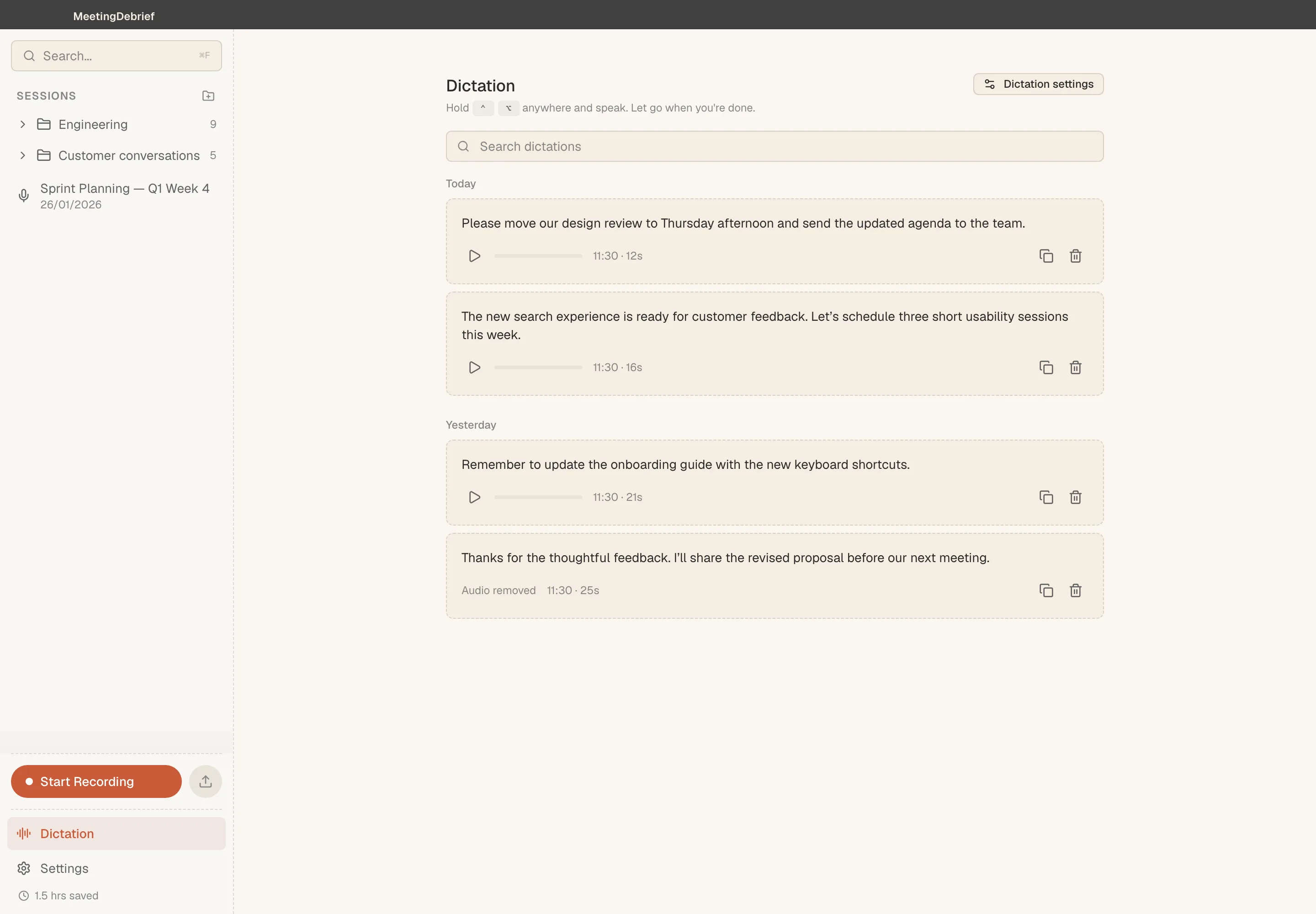
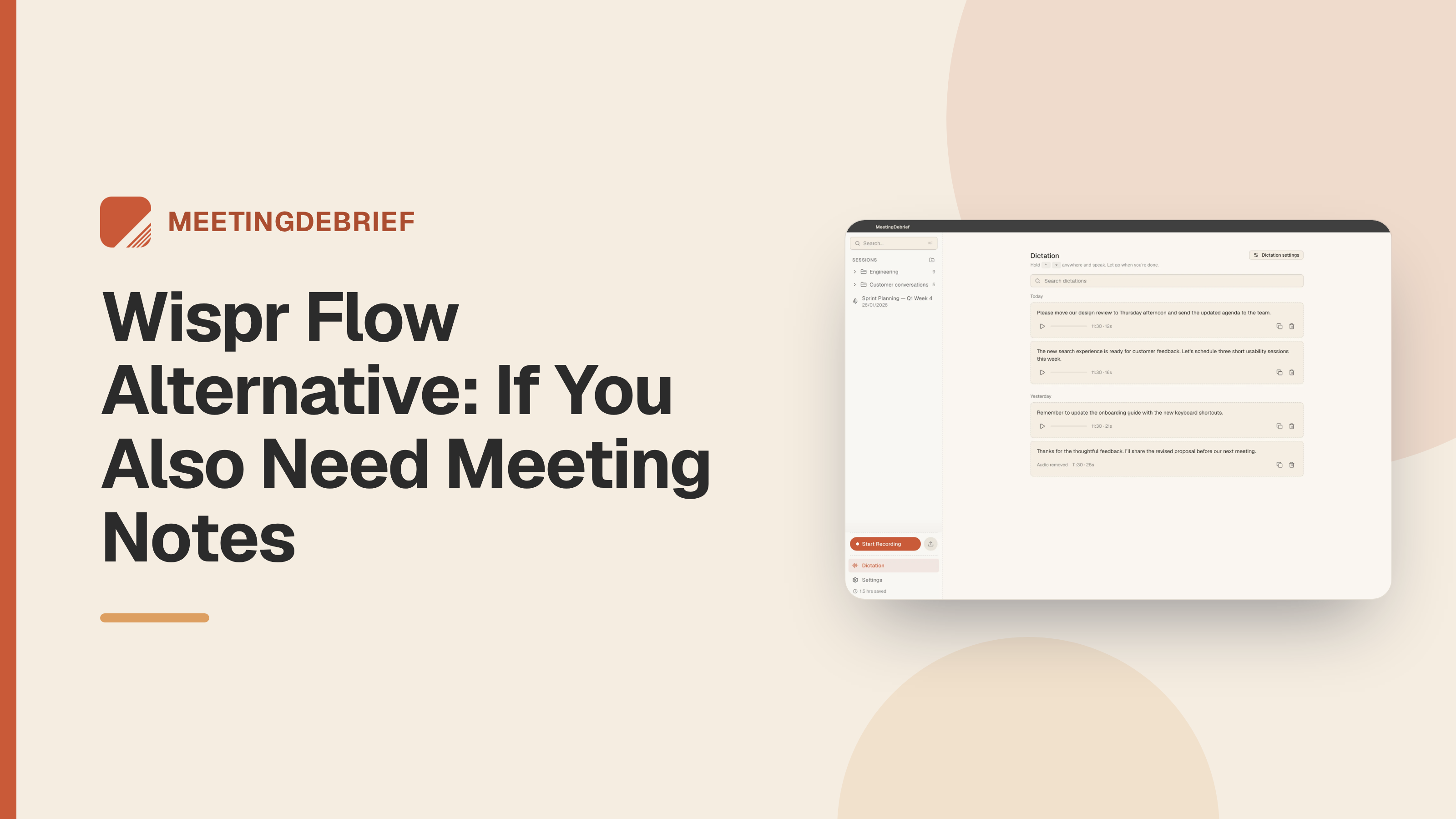
On MeetingDebrief, the default shortcut is Ctrl+Alt+D on Windows and ⌃⌥D on macOS. The dictation workflow is simple: hold the shortcut anywhere, speak, let go, and the text is inserted where you were already working. The text is also saved under Dictation in the sidebar.
Clipboard behavior matters just as much as recognition. If you copied a link, a code snippet, or a paragraph before dictating, you do not want that clipboard item destroyed because you used your voice for one sentence. MeetingDebrief restores the clipboard after dictation, which removes one of the most common annoyances in cursor-level tools.
The next edge case is blocked pasting. Some fields will not accept pasted text, especially password fields and elevated windows. In those cases, MeetingDebrief leaves the dictated text on the clipboard and tells you to paste it yourself. That is a much better failure mode than losing the text or forcing you to say it again.
History starts to matter once dictation becomes part of daily work instead of an occasional shortcut. Every dictation is kept in a searchable history, and the same global search can pull them back later. If you only want dictations in search, you can filter for is:dictation. That is useful when a dictated support reply becomes a reusable answer, or when yesterday’s spoken prompt was better than the version you are trying to retype from memory.
Shared vocabulary is the other detail that matters in real work. In Settings → Vocabulary, you can add the correct form of a name, acronym, or product term, plus common mishearings under Also heard as. The same vocabulary applies to meetings and dictation. If your client name, internal codename, or stack acronym needs correction, you teach it once and reuse it in both workflows.
That is the replacement standard. It should work in the apps where you already spend your day, recover cleanly from blocked fields, preserve the clipboard, and remember the language your work actually uses.
Why MeetingDebrief becomes the better fit once meetings enter the picture
Meetings introduce a different capture problem. You need the other side of the conversation, not just your own voice, and you need a method that works across Zoom, Google Meet, Microsoft Teams, Slack huddles, in-person conversations, and recordings you import later. MeetingDebrief handles that by capturing microphone and system audio directly, so the workflow does not depend on a bot joining the call or on a specific meeting platform. That same setup also covers imported audio files. The product overview on the home page and the recording docs explain this workflow.
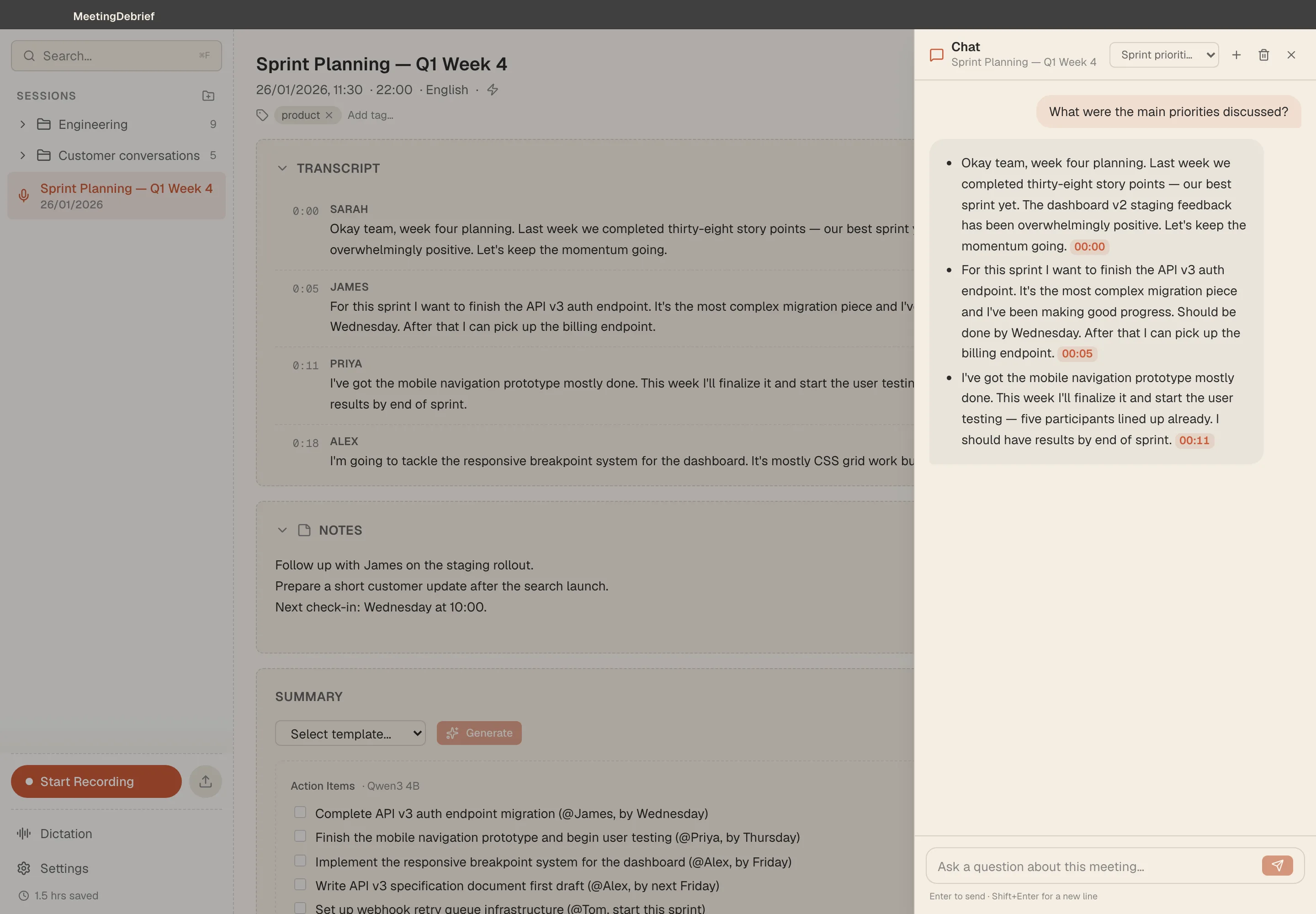
After the call, the output matters more than the recording itself. You need a transcript for exact wording, a summary for fast recall, and a clear list of follow-up work when the meeting ends with decisions. MeetingDebrief includes an Action Items template that pulls out owners and deadlines. That is more useful for project calls, client discovery, standups, and one-on-ones than a generic recap. In 5.0, summaries also became date-aware, so phrases like “by Friday” are interpreted against the meeting date.
The record becomes more useful because it sits alongside the rest of your spoken work. Global search covers transcripts, summaries, notes, and dictations, with filters such as is:meeting and is:dictation. In practice, that means you can search a project codename, a client surname, or a product term and pull back both the conversation where it was said and the follow-up text you dictated afterwards.
Local processing matters here for practical reasons, not just policy language. Per MeetingDebrief’s privacy page, recordings, transcripts, summaries, chat, and dictation stay on the computer. The models are downloaded once, then run offline. That makes the app usable in situations where a cloud notetaker is awkward or impossible, such as confidential client calls, firewalled environments, or offline interview transcription after setup.
For developer-heavy workflows, there is one more reason to keep meetings and dictation in the same app. MeetingDebrief includes a built-in read-only MCP server for Claude Desktop, Claude Code, and Cursor. If meeting context needs to be available where you write prompts and code, that matters more than a longer list of dictation features.
Who should choose MeetingDebrief, and who should not
MeetingDebrief fits a specific buyer. It makes sense for consultants, freelancers, team leads, researchers, and developers whose spoken work already spans two jobs: live text entry during the day, and recorded conversations that need follow-up later. It is a better fit when you want those records in one place, want processing to stay on the machine, and would rather buy software once than rent two services every month.
Choose it if these sound like your work:
- You spend most of your day on a Mac or Windows PC and want one desktop tool for both spoken text and recorded conversations.
- You regularly leave calls with follow-up work, not just a vague memory that something was decided.
- You deal with client names, acronyms, product terms, or internal jargon that are worth teaching once and reusing.
- You are a developer or technical lead who wants past meeting context available inside Claude Desktop, Claude Code, or Cursor through the built-in read-only MCP server.
- You prefer a one-time per-device purchase over another recurring subscription.
Pass on it if your requirements point somewhere else:
- If you need Linux, iPhone, Android, or a web app, this is not your tool. MeetingDebrief is desktop-only on macOS 14+ and Windows 11+.
- If your process depends on a bot joining calls automatically, or on calendar-driven recording, choose a meeting product built around that workflow.
- If you only want the smallest possible dictation utility and have no need to keep recordings, transcripts, or summaries, keep comparing dictation-first apps.
- If part of your work happens in environments [NEEDS PRODUCT DETAIL: supported edge cases such as RDP, Citrix, or other remote/virtualized desktop setups], verify that before you switch.
If you want to run that test, download MeetingDebrief. Try dictation with Ctrl+Alt+D on Windows or ⌃⌥D on macOS, record one real meeting, and see whether one app can replace your two-tool stack.